
RECEIVING A MESSAGE
How to receive a TrueSend email
There are just two steps to retrieving your TrueSend email.
Automated email bots sometimes open links to check them. TrueSend asks you to confirm your email address and then choose to open the message. These two steps help check that the intended recipient is receiving it.
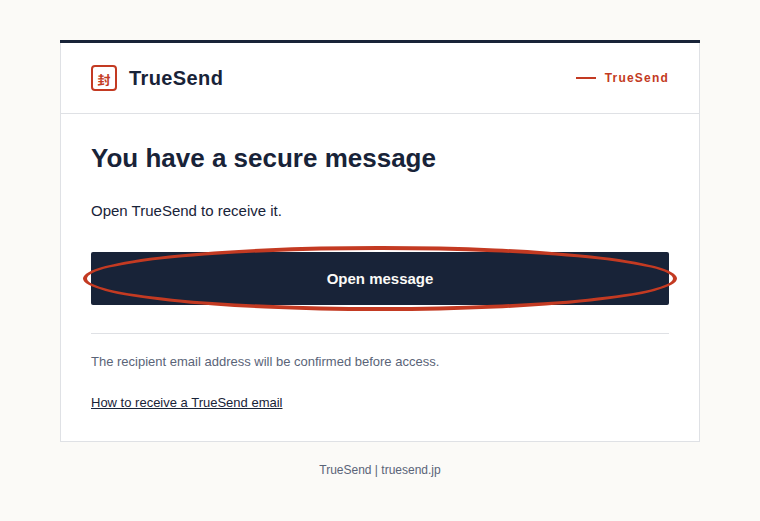
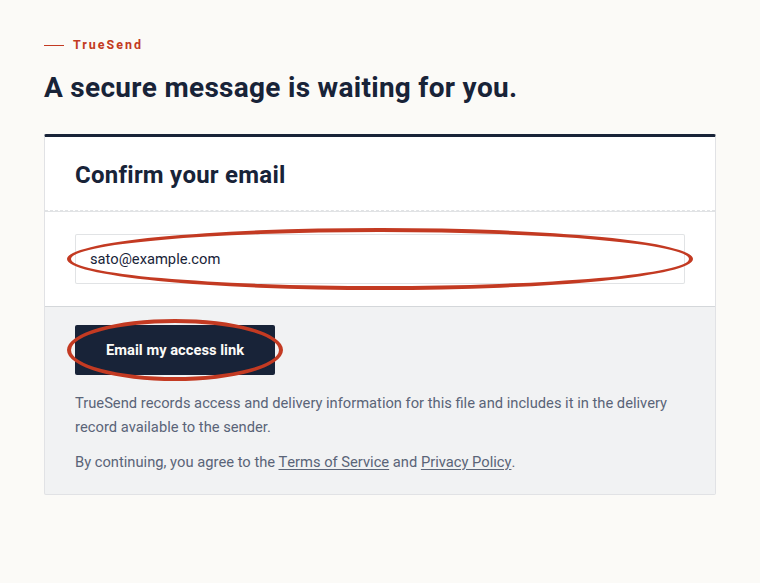
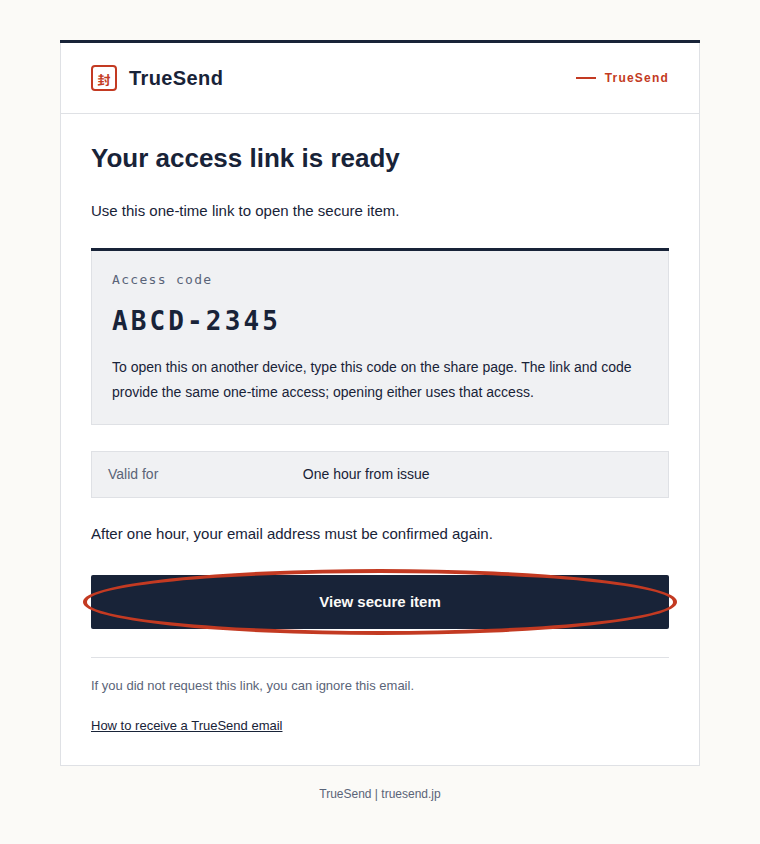
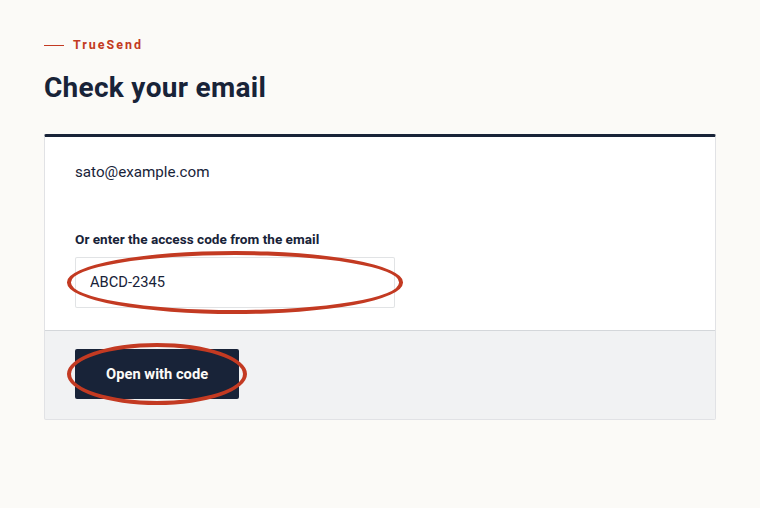
These are example screens. Red circles show where to type or click. Follow these steps on your own screen.
-
Confirm your email address
Ask for your access link
Open the TrueSend notification in your inbox. Press “Open message.” A page will open where you can ask to read it.
Type the email address where you received the notification. Press “Email my access link.” You do not need to enter your email password.
Why? This helps check that the person opening the message can use the intended email address.
Confirm using the new email
Open the new TrueSend email. Press “View secure item.” Using the link in this new email confirms your email address.
You can also use the code
Copy the access code from the email. Return to the “Check your email” page, paste it into the code box, and press “Open with code.” Use either the link or the code.
-
Read your message
Open your message
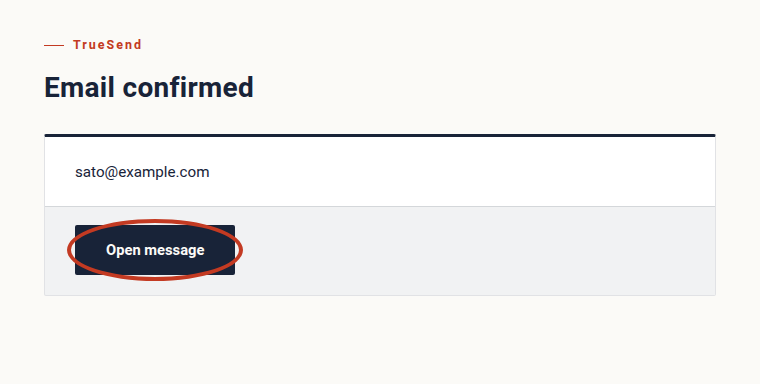
When you see “Email confirmed,” press “Open message.” You can now read what the sender wrote.
Pressing this button records your action to open the message.
Read what the sender wrote
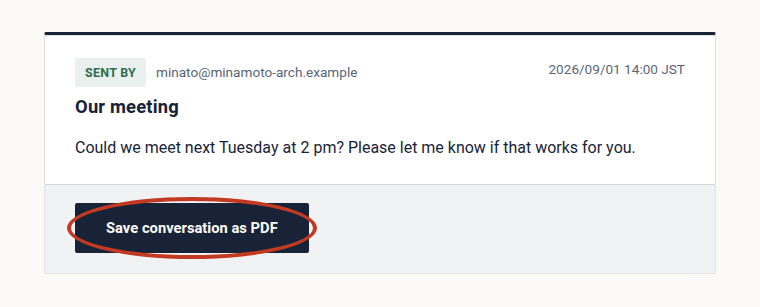
Your message appears on the screen. Take your time to read it.
To keep a copy, use “Save conversation as PDF” if that button is shown.
Stop reminder emails
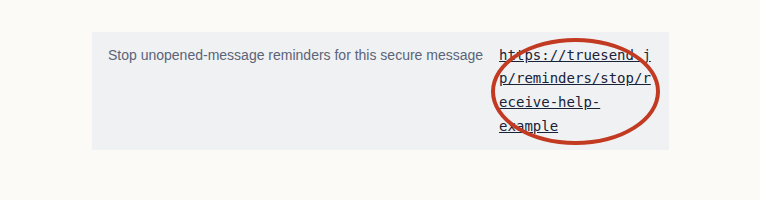
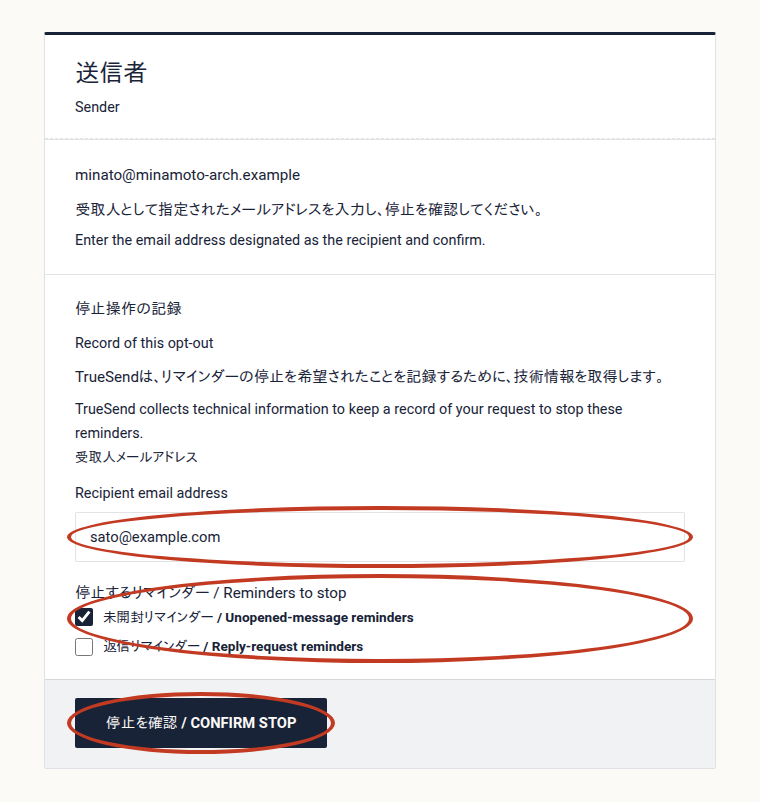
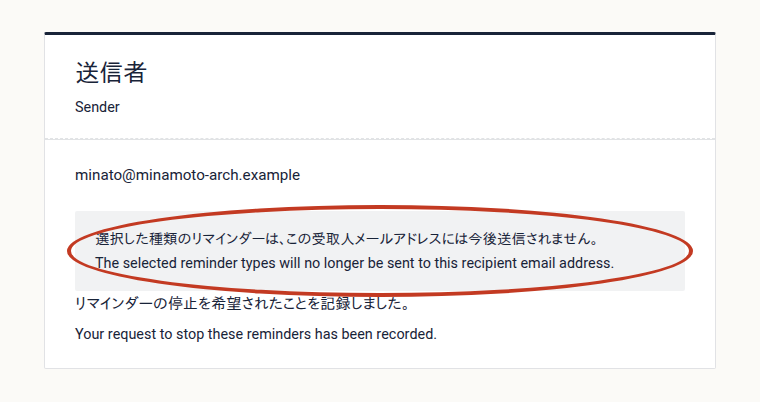
Use the stop-reminders link near the bottom of a reminder email. On the next page, enter your recipient email address, select the reminders you want to stop, and press “CONFIRM STOP.” If the stop address is not clickable, copy it into your browser’s address bar and press Enter.
Look for the confirmation that reminders have stopped. This stops the selected reminders for this message.
Why the extra steps?
Checking your email helps keep a private message with its intended recipient. TrueSend keeps a lasting record of sending and confirmed access. This helps protect both you and the sender when you need to check what happened later.
Think of registered post
With an important company notice or a document about a legal matter, people may need to check when it was sent and received. Like registered post, keeping a record helps avoid misunderstandings. European registered electronic delivery services also use records of sending and receiving.
If you get stuck
No new email arrived
Wait a little, refresh your inbox, and check your spam or junk folder. Check that you entered the same address that received the first notification.
My link has expired or was already used
If the access link has expired or was already used, return to the first notification email. Follow its share link and confirm your email address again to get a new access link. If that original share link is also unavailable, ask the sender to share the content again.
Which email address should I enter?
Use the address that received the first notification. If someone forwarded the email and you cannot access the original inbox, ask the sender to send the message to your own address.